Sep 01

Installing PEAR for PHP

pearsmall

Installation

For Windows:

  • To update your PEAR installation, request http://pear.php.net/go-pear in your browser and save the output to a local file go-pear.php.
  • Assuming you have installed PHP already, and it is runnable from the command line type php go-pear.php

For FreeBSD:

  • Add the PEAR DB package from the ports /usr/ports/databases/pear-DB

Test Installation

To make sure that PEAR is working simply type in pear at the command prompt. If nothing shows then check that the PEAR path is part of your system path. Check the version of PEAR by typing pear version

To use PEAR and PEAR compatible packages in your applications, you normally include them into your PHP scripts using require_once().  For this to work, PEAR’s php_dir must be a part of PHP’s include path.

First check where PEAR installs php files by typing

pear config-get php_dir

Whatever the folder is, this folder will contain System.php

To find which configuration file is used by your PHP installation. On command line, execute php –ini

When you execute a phpinfo() in the browser it should always the show the PEAR path in its include path for the PEAR packages to work.


<em></em>


Jul 30

Installing VSFTPD

1.Install it from the ports

cd /usr/ports/ftp/vsftpd

make config

make install clean

2.Edit the vstfpd.conf file in /usr/local/etc/vsftpd.conf to customize the settings

3.To run it from the command line:

/usr/local/libexec/vsftpd &

3.To make it run at startup create an executable file in /etc/rc.d

#! /bin/sh

#

/usr/local/libexec/vsftpd &

4.Restart computer

May 26

Checklist of applications to install

A reference list of all installed apps required for use on FreeBSD 8.0 or later

abiword – Word processing application

aterm – Better alternative to xterm

firefox – browser

fluxbox – window manager

filezilla – ftp client

gcolor2 – color picker utility

gkrellm – system monitoring util

linux-base-f10  – fedora linux compatibility base libraries

linux-f10-flashplugin – flash plugin for firefox and other browsers

mysql 5.x – mysql server and client

apache22 – apache http server

php5.x – php

opera – browser

portsnap – port updater tool

portaudit – port security tool

portmaster – port installer

putty – ssh tool

subversion – svn version control

vim – editor

xpdf – pdf viewer

xnview – image capture and processing utility

ffmpeg – audio/video conversion tool

xmms – mp3 player

mplayer – video player

Selenium – Firefox add-on for automated web testing

siege – web stress testing tool fromn joe dog sofware

May 17

Installing Mysql 5.x

The commands are given below. Though this was used to install mysql 5.5.4 , it is applicable to older versions also (and perhaps newer ones as well).

cd /usr/ports/databases/mysql55-server/
make install clean
/usr/local/bin/mysql_install_db
chown -R mysql /var/db/mysql/
chgrp -R mysql /var/db/mysql/
/usr/local/bin/mysqld_safe –user=mysql &
/usr/local/bin/mysqladmin -u root password newpassword

Edit /etc/rc.conf to start mysql server at startup by putting the line

mysql_enable=”YES”

After this, restart FreeBSD.

Apr 21

Installing FreeBSD over an old installation

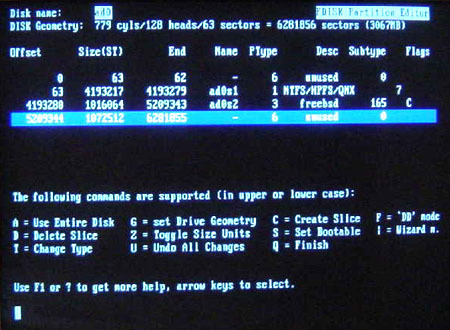
A crucial part in installing FreeBSD again over a corrupt or existing FreeBSD installation is knowing how to recreate the disk partitions. By default, even if you change the disk geometry and slicing configuration, the actual changes will be written to the disk, only when installation of files is about to start.

In such a case, if your existing partitions have data, you may very well end up with a situation where FreeBSD says that there is not enough space to install the new files.

To make FreeBSD ignore existing data on the disk, once you have completed configuration press W either in the FDisk screen or in the Disk Labelling screen.

FDisk Screen

FDisk Screen

W is not a key that is listed in the help commands but it works. It ‘W’rites the new disk configuration to the disk and thereby invalidates all existing partition configuration and data.
screen_disk_label

FreeBSD will warn you once before committing the Write. For obvious reasons, this step should not be taken if you are installing FreeBSD for the first time in your disk.

Apr 16

How to embed a Google map in a WordPress blog

Overview

I get a lot of requests from people who want to put up a google map in their blog (which most of the time is WordPress) but they have no idea how to do it. Unlike embedding  a google map in a standard web page ,  a simple pasting of the map script will not work in WordPress.

The best way to show a google map as part of a WordPress blog post is to make it a WordPress Plugin. For most non developers, creating a WordPress plugin is simply not worth the trouble as it takes too much knowledge of PHP and the WordPress API . For PHP developers who are proficient in PHP but have never worked with WordPress code before, the task of making a WP plugin can be a little daunting at first. It takes some time and some trial and error to understand how a WP plugin works.

For both the above kinds of people I thought it would be a good idea to create a simple Google map plugin for WP which can be used by anyone who just wants to show a map in WP. This basic plugin can also form a base for creating a more complex map plugin if required.

It is assumed the reader already knows how to paste a google map in a standard web page. I am just going to deal with the basics of writing a WP plugin and how to plug the google map into it.

gmaphomepage

The Plugin Deployment

The plugin has the following files :

  • index.php – this is the main plugin file
  • showmap.php – this is the code which actually displays the map
  • /includes/globals.php – some global variables required by the plugin
  • /includes/scripts.js – the javascript to control the map display via Google Maps API

The plugin is available as downloadable zip file here. To install the plugin in your WP blog

  • Unzip the contents of the zip in the wp-content/plugins directory.
  • After unzipping all the files should have gone into a folder called wp-content/plugins/gmapplugin.
  • Edit the file globals.php in the includes folder and change  $g_docRoot to reflect the base path of your gmapplugin folder , change the $g_serverName to reflect the domain name of the website, $g_map_key to reflect the google map api key for your domain.
  • Go to wp-admin, login as admin , go to the Plugins page and activate the plugin.
  • After this, the homepage, all the posts and all the pages should show the sample map alongwith whatever original content is present.

How It Works

The main plugin file is index.php. The entire plugin is created as a class which gets instantiated only once. This class can have any methods or atrributes that is required. WP does not place any restrictions on the internal functioning of the class.

In our class we have defined a method called loadData which gets called in the constructor. For now this method does nothing but can be used to run any initialization tasks required for the class to function.

The main method which handles the displaying of the map is showMap(). This method acts as the main point of contact between the WP blog and the Google map. There are a few WP functions which are used in this function. They are explained below:

  • get_bloginfo(‘wpurl’) gets the base url of the WP blog
  • $post->post_type returns either “post” or “page” depending on what the current content is . This helps you distinguish between the two kinds of content in WP.
  • is_home() returns a true or false depending on whether the current page is the homepage or not.

The showMap() checks whether the current page is the homepage or a post or a content and then shows the map in all three cases.

        function showMap($content) {

           global $post;

            $url = get_bloginfo('wpurl');// this is to get the current WP base url

                    // check if this is a post

            if ($post-&gt;post_type == "post" &amp;&amp; !is_home()) {

                $more_content = file_get_contents($url . "/wp-content/plugins/gmapplugin/showmap.php");

                return $more_content. $content ;

            }

                    // other pages and not homepage

            if ($post-&gt;post_type == "page" &amp;&amp; !is_home()) {

                $more_content = file_get_contents($url . "/wp-content/plugins/gmapplugin/showmap.php");

                return $more_content . $content;

            }

            else {

                    // show map in homepage

                    if (is_home()) {

                    $more_content = file_get_contents($url . "/wp-content/plugins/gmapplugin/showmap.php");

                return $more_content. $content ;

                  }

            }

            return $content;

        }

There is a function at the bottom of index.php called add_filter(‘the_content’, array(&$GMS, ‘showMap’));

This is an inbuilt WP function which adds third party code to its event queue or processing pipeline. This line tells it to add this class into the list of classes which will filter “the content”

Enhancements and Changes

It is unlikely that anyone would want to show a map in every post or page. To fix that, you can filter on the $post->ID for showing maps only if particular posts are shown.

You can also filter on custom fields added to the post while editing it. This can be done using get_post_meta($pageId, ‘custom_field_tag’, true) . If the current post has this particular custom field value then it will return true and the map can be shown.

Dec 23

Installing PHP 5 on FreeBSD

A tutorial on installing PHP from the FreeBSD ports for Apache and MySQL.

What you need to add to the httpd.conf file and which of the PHP5 ports to choose.

Choosing which port to use
In the past there were several ports for PHP such as /www/mod-php5, /lang/php5-cli, and /lang/php5. Since the release of PHP 5.1.14 there is now only /lang/php5 This port now allows you to choose if you want to install the CLI, CGI, and Apache module.
CLI stands for command line interpreter. It is used for running PHP scripts from the command line and makes creating shell scripts very simple if you already know PHP. The Apache PHP Module is disabled by default, so make SURE that if you plan to use this for web work that you enable it.
Installing the port
Since all PHP ports are now combined you will need to configure it to be sure the parts you need are built.
# cd /usr/ports/lang/php5
# make config
# make install
When you run make config you will be shown a list of options. To use PHP with Apache make sure the Apache Module box is selected.
Once php has installed you will need to install the extra modules for things such as MySQL. These modules are all located in the ports. Some of the most common modules are
/usr/ports/databases/php5-mysql – MySQL Database
/usr/ports/www/php5-session    – Sessions
/usr/ports/graphics/php5-gd – Graphics Library
Adding the PHP 5 module to Apache
Apache needs the following lines in the httpd.conf file to use php. These lines should already be added by the port but if you have problems you should double check your httpd.conf file. Note that Apache 2.x does not need the AddModule line.
# Apache 1.3.x
LoadModule php5_module        libexec/apache/libphp5.so
AddModule mod_php5.c
# Apache 2.x
LoadModule php5_module        libexec/apache/libphp5.so
If you installed using the port and had apache installed already it should do this automatically for you.
Next find your DirectoryIndex section in your httpd.conf file. Apache is set up for PHP 4, but not PHP 5 currently so you will need to modify it and change the 4s to 5s like this.
<IfModule mod_dir.c>
<IfModule mod_php3.c>
<IfModule mod_php5.c>
DirectoryIndex index.php index.php3 index.html
</IfModule>
<IfModule !mod_php4.c>
DirectoryIndex index.php3 index.html
</IfModule>
</IfModule>
<IfModule !mod_php3.c>
<IfModule mod_php5.c>
DirectoryIndex index.php index.html index.htm
</IfModule>
<IfModule !mod_php4.c>
DirectoryIndex index.html
</IfModule>
</IfModule>
</IfModule>
This code is telling Apache to open index.php first you have the PHP 5 module loaded. You can change the order as you wish. Or if you just wanted to skip it you could simply add the following line to the httpd.conf file since you know you are going to have php 5.
DirectoryIndex index.php index.html index.htm
Now apache just needs to know what it should parse the PHP files with. These two lines should be added to the httpd.conf file, and can be put at the bottom if needed.
AddType application/x-httpd-php .php
AddType application/x-httpd-php-source .phps
If want to use PHP code inside of .htm files you can just add on those extensions.
AddType application/x-httpd-php .php .htm .html
Configuring PHP
Settings for PHP are stored in /usr/local/etc/php.ini You will need to create this file by copying it from /usr/local/etc/php.ini-dist
# cp /usr/local/etc/php.ini-dist /usr/local/etc/php.ini
In this file you can set the memory limit for programs. Turn on global variables if you must, set the max file upload size, and everything else you need.
Testing PHP
Once you have restarted Apache so the changes take effect you are ready to test it. To test it run the following command to create a php file that you can attempt to run
# echo “<? phpinfo(); ?>” >> /usr/local/www/data/test.php
Then point your web browser to http://yourdomain.com/test.php and if it works you will see several pages of information on your PHP settings. If it did not work you will see only the text you typed in.

Dec 23

Getting Apache installed

Installing Apache2.2

Make sure you update ports and then run the following commands:

# cd /usr/ports/www/apache22
# make install clean
That will install apache2.2
Configuring apache2
Lets edit the httpd.conf file:

# vi /usr/local/etc/apache22/httpd.conf
Scroll down and change the following settings. The optional settings I will put OPTIONAL before the setting:

OPTIONAL: Listen 80 – You can change this default option if you have more than one apache server running on your network

User www – Changes what user apache runs as

Group www – Changes what group apache runs as

ServerAdmin you@example.com- change you@example.comto your email address.

DocumentRoot “/usr/local/www/apache22/data” – I don’t usually use the default path. I put my www documents on a seperate drive.

Directory “/usr/local/www/apache22/data” – Change this to the same path as DocumentRoot (See above)

<Directory /usr/local/www/apache22/> Change this to the root of your vhosts folder

DirectoryIndex index.html index.html.var – add any pages you would use. For instance, add index.php if you use php pages

OPTIONAL: #CustomLog /var/log/httpd-access.log combined – I usually leave this commented unless you want to use this to track users looking at your site

ScriptAlias /cgi-bin/ “/usr/local/www/cgi-bin/” – change this to your cgi-bin path

Directory “/usr/local/www/cgi-bin”> – change this to the same path as ScriptAlias /cgi-bin above

Now lets tell apache to start:

# apachectl start
and hit Enter on your keyboard
We now need to tell Apache to run on startup. Please run the following command:

# echo ‘apache22_enable=”YES”‘ >> /etc/rc.conf
If you get no errors, apache should be running. Look at the page by opening a browser to http://localhost or replace localhost with the IP or the actual hostname of the box. If you went with the DocumentRoot defaults, You will see an apache test page until you get your site up and going. If you are behind a router or firewall, make sure you forward the apache port (Port 80) to the FreeBSD box otherwise you won’t be able to get there from here. :-)

Configuring SSL

Let’s get SSL Configured and Installed:

(FROM http://www.bsdguides.org/guides/freebsd/webserver/apache_ssl_php_mysql.php)

# mkdir /usr/local/etc/apache22/ssl.key
# mkdir /usr/local/etc/apache22/ssl.crt
# chmod 0700 /usr/local/etc/apache22/ssl.key
# chmod 0700 /usr/local/etc/apache22/ssl.crt
Create Certificate
Now, you need to understand that one server can hold multiple certificates, but only one per listening IP address. So, if your server is listening on one IP address, you can only have one certificate for the server. Follow me so far? All of your virtual domains can share the same certificate, but clients will get warning prompts when they connect to a secure site where the certificate does not match the domain name. If your server is listening on multiple IP addresses, your virtual hosts have to be IP-based — not name-based. This is something to consider when creating your certificate. :-)

Change to your root dir by typing in the following command. We want to save this configuration there as a backup.

# cd /root
# openssl genrsa -des3 -out server.key 1024
You will now be prompted to enter in a password. Write this down as you will need it later. We need to make a Certificate Signing Request (CSR):

# openssl req -new -key server.key -out server.csr
Enter your password when it asks for it. Make sure you enter your FQDN for the “Common Name” portion.
Self-signing your Certificate
You could always pay money to Verisign or Thawte for this but it costs $$$. Here is the way to do it:

# openssl x509 -req -days 365 -in /root/server.csr -signkey /root/server.key -out /root/server.crt
Now your cert is good for 365 days. If you want to make it longer, go right ahead and do so :-)
If you would like more information about SSL Certs, go to http://httpd.apache.org/docs-2.0/ssl/ssl_faq.html#aboutcerts

Now we need to copy the certs to the right place:

# cp /root/server.key /usr/local/etc/apache22/ssl.key/
# cp /root/server.crt /usr/local/etc/apache22/ssl.crt/
Now to give them the right permissions as well:

# chmod 0400 /usr/local/etc/apache22/ssl.key/server.key
# chmod 0400 /usr/local/etc/apache22/ssl.crt/server.crt
We will now want to copy the default httpd-ssl.conf from the extras folder to the Includes folder:

# cd /usr/local/etc/apache22/extra
# vi httpd-ssl.conf
Now modify the following:

DocumentRoot “/usr/local/www/data” – Change the path to your httpd.conf document root.

ServerName www.example.com:443 – Change www.example.com to your domain name.

ServerAdmin you@example.com  Change this to your email address

ErrorLog /var/log/httpd-error.log – You can leave this or comment it out.

TransferLog /var/log/httpd-access.log – You can leave this or comment it out.

SSLCertificateFile “/usr/local/etc/apache22/ssl.crt/server.crt”

SSLCertificateKeyFile “/usr/local/etc/apache22/ssl.key/server.key”

One additional thing you will need to do is open up  /usr/local/etc/apache22/httpd.conf and comment out the following line:
Include etc/apache22/extra/httpd-ssl.conf
Now run the following:

# apachectl stop
# apachectl start
The start means it will start in ssl mode to serve both http:// and https:// addresses. This used to be apachectl sslstart but that command has been depreciated.
The URL below includes instructions on how to remove the pass phrase prompt when apache starts

http://httpd.apache.org/docs/2.0/ssl/ssl_faq.html#removepassphrase

Nov 26

Installing Apache 2.0.* with PHP 5.* in Windows

Much documented as the above process is, a lot of people still get stuck in some part of the installation process or the other (me included). It is not a complicated process really, its just that there are some simple tips and tricks which people have learned the hard way and these tips and tricks are often not available to the newbie installer.

Apache and PHP are softwares which are actually meant for *nix environments but a surprisingly large number of Windows developers use these platforms as a basis of all web development. Given below are the steps to get a successfull installation of Apache and PHP on Windows.

Why Apache 2.0 and not the latest Apache 2.2.3? Because as of this date, Apache 2.0 has some dll inconsistencies with PHP 5.x versions. PHP 5.2.0 has been released but I havent tried installing it with the latest Apache. Hopefully the problems of incompatibilities have been solved this time round.

1.Installing Apache 2.0

  1. Download the msi installer version of Apache 2.0. Its simpler to install from that than the zip installer
  2. For Windows machines which are running PWS or IIS, you need to turn off the WWW service before running the installer, because Apache defaults to using port 80 for HTTP and it wont start if it finds that port 80 is already in use.
  3. Run the msi installer
  4. Installing the Apache webserver is very simple. Simply follow the default installation screens and you are done.
  5. If all went well, then you will see the red Apache icon in your taskbar.
  6. To test if apache is running, open your web browser and type http://localhost or http://127.0.0.1 . You will see different pages in both the urls but it means your Apache webserver is up and running.

2.Installing PHP

  1. Unzip the php zip file to a folder of your choice.
  2. Thats it. PHP is installed. Simple, huh? Unfortunately you cant fire up your browser and see any php files running just yet. PHP need to be linked in with Apache before php pages start to run on your machine.

3.Changes to Apache 2.0 configuration

  1. Open up httpd.conf file in a text editor. This file exists in the /conf subdirectory of the folder in which Apache is installed.
  2. Do a text search for ‘AddType’. You will find lines which start with the AddType directive. After the last AddType line add these two lines:
    1. #php 5
    2. AddType application/x-httpd-php .php
    3. This tells Apache to handle php files as a registered application type.
  3. Do a text search for ‘DirectoryIndex’. Most likely this line will show as :
  4. DirectoryIndex index.html index.html.var
  5. This means that if a url does not specify a file, but only a folder, then the default page to load will be index.html. We want to change it so that it loads index.php when no file is specified. So change it to :
    DirectoryIndex index.php index.html index.html.var
  6. So now index.php becomes the default file for all directories.
  7. Do a text search for ‘LoadModule’ in httpd.conf. After all the LoadModule lines add the following line (assuming php is in c:php) :
    1. LoadModule php5_module c:/php/php5apache2.dll

4.Changes to PHP configuration

  1. Copy php.ini-dist in the php folder to php.ini. If php.ini-dist is not present, copy php.ini-recommended to php.ini.
  2. Open php.ini in an editor.
  3. Do a text search for ‘extension_dir’ . Most likely this line will show as
    1. extension_dir = “./”
    2. Change that to the complete path where the php extensions are present. Generally this is the ext folder under the php folder. So an example of this would be :
    3. extension_dir = “c:/php/ext”
  4. Do a text search for ‘Windows Extensions’. Once there, scroll down till you find the lines starting with extension= . If you plan to use mysql then uncomment the line extension=php_mysql.dll.
  5. If you want to run php with mysql then copy a file called libmysql.dll from the php directory to the Windows sytem folder i.e /System32.
  6. If you want to use the curl module then asuming you have uncommented the extension=php_curl.dll in php.ini , copy ssleay32.dll and libeay32.dll from the php directory to the Windows sytem folder (System32).
  7. Copy the updated php.ini file into the Windows folder i.e c:windows or c:winnt.
  8. Copy php5ts.dll from the php directory into the Windows system folder ie.System32

5.Test php with apache

Make a page called test.php with the following line:

phpinfo();

and save it in the Apache default website folder ie. the htdocs folder under the Apache folder.

Type http://localhost/test.php

If all has gone well, then you should see the page run.

Let me know if I missed out on something. I would be glad to incorporate your inputs to this blog